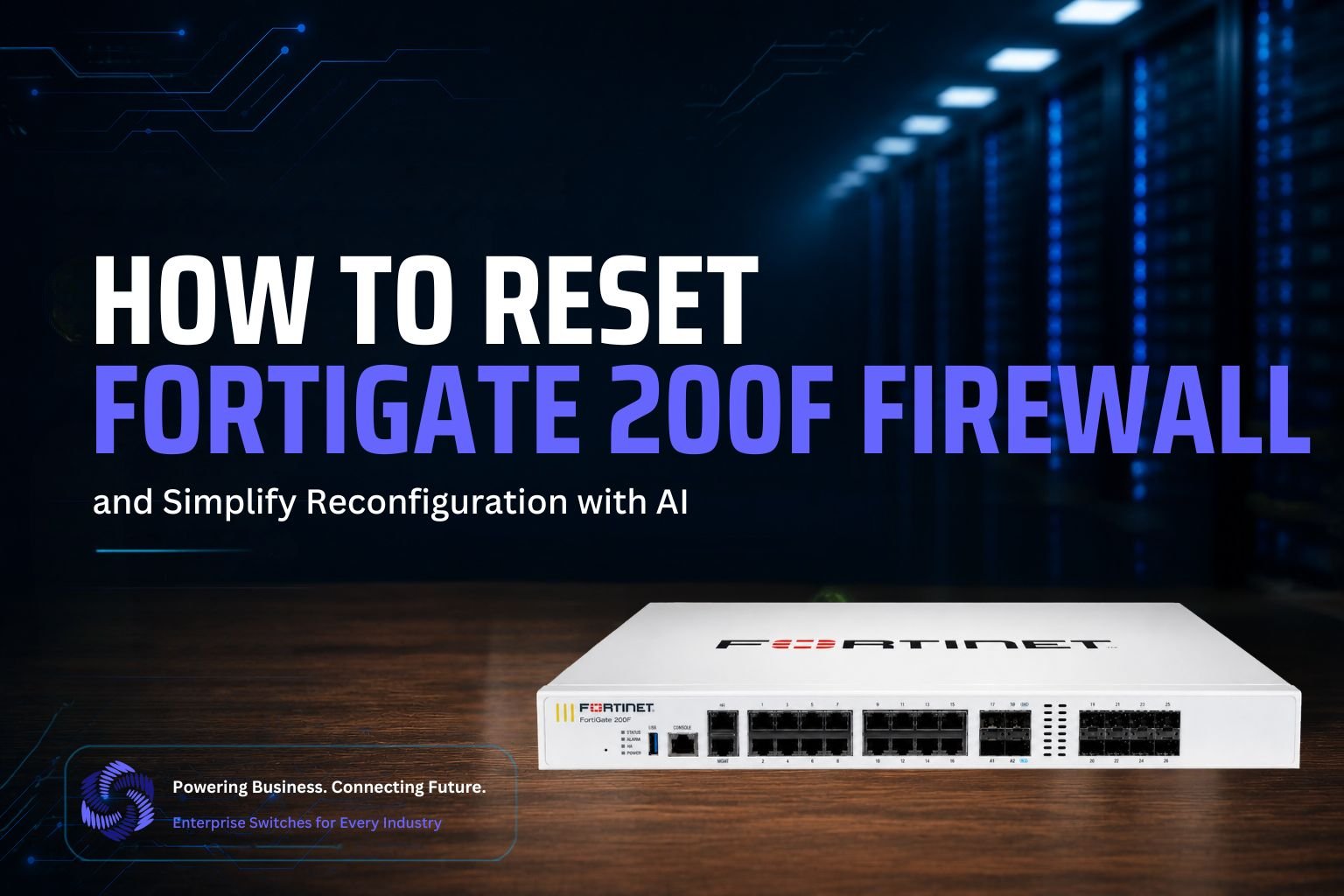
Learn how to safely reset a FortiGate 200F and how CogniFire uses AI to simplify repetitive FortiGate firewall configuration tasks.
Introduction
Have you ever locked yourself out of your FortiGate 200F firewall and wondered how to get back in? Whether you’ve forgotten your admin password, misconfigured settings, or need to start fresh, a factory reset is your solution. The FortiGate 200F is a powerful security appliance, but resetting it properly is crucial to avoid network disruption. This guide will walk you through all reset methods, including the web interface, CLI commands, and physical reset button. You’ll learn what happens during reset, how to back up your configuration, and how to quickly reconfigure after. By the end, you’ll have the confidence to reset your FortiGate 200F safely and efficiently.
How to Reset a FortiGate 200F Firewall?
The FortiGate 200F is an enterprise firewall designed to provide security and connectivity for business networks. There are several situations where administrators may need to return the device to its factory default state, including persistent configuration problems, credential issues, network redesigns, or preparing the firewall for redeployment.
A factory reset removes the existing configuration from the device, so it should always be treated as a planned administrative operation rather than a routine troubleshooting step.
Types of Resets
1. Soft Reset (Configuration Reset)
Clears all configuration settings while preserving the firmware version.
2. Hard Reset (Factory Reset)
Restores the device to factory defaults, including firmware.
3. Reboot
Restarts the device without losing configuration.
Method 1: Reset via SSH/Console Management Port
Prerequisites
- Access to management interface (SSH, Telnet, or Serial Console)
- Admin credentials (default: admin/admin)
- Console cable (for serial connection)
- Terminal application
Step-by-Step Process
- Connect to the Firewall
- Open SSH client or web browser
- Access management IP address of FortiGate 200F
- Log in with admin credentials
- Username: admin
- Password: admin
- Navigate to Reset Options
- Go to System > Reset in GUI
- Or use CLI command: execute system reset config
- Review warning message carefully
- Confirm the Reset
- Click OK button or type yes at prompt
- System will clear configuration
- Device will restart automatically
- Wait for Reboot
- Process takes 2-3 minutes
- Do not interrupt the procedure
- Device will reboot automatically
- Connect again using default credentials
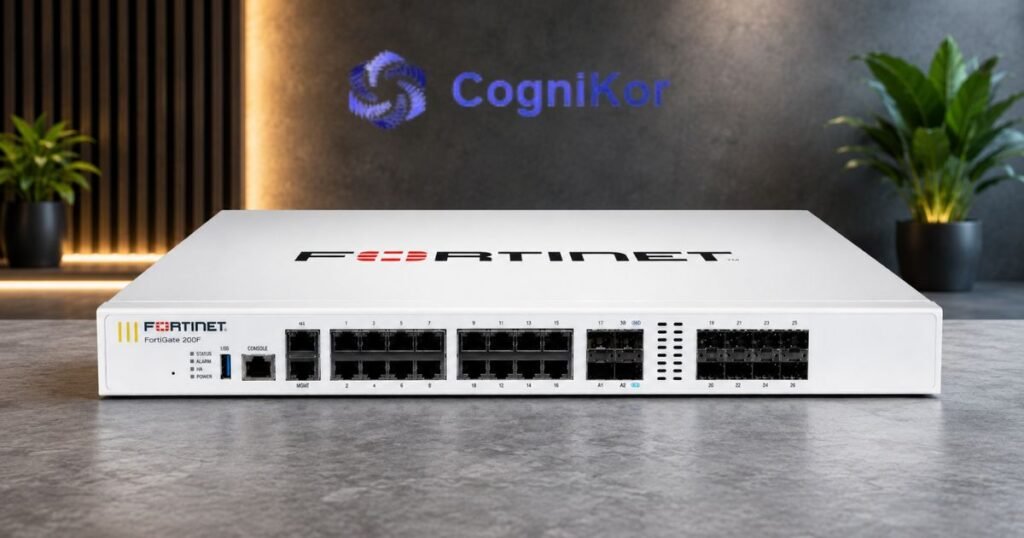
Method 2: Reset via Serial Console
Prerequisites
- Serial/Console cable
- Terminal emulation software (PuTTY, Minicom, HyperTerminal)
- Console access port on FortiGate 200F
- Computer with serial port or USB adapter
Connect Console Cable
- Connect serial cable to console port on FortiGate 200F
- Connect other end to your computer
- Ensure cable connection is secure
Open Terminal Application
- Launch PuTTY or similar terminal emulator
- Configure terminal settings:
- Baud Rate: 9600
- Data Bits: 8
- Stop Bits: 1
- Parity: None
- Flow Control: None
- Click Open to connect
Access the Device
- Press Enter when prompted
- Wait for login prompt
- Log in with default credentials:
- Username: admin
- Password: admin
Execute Reset Command
- Type: execute system reset config
- Confirm when prompted by typing yes
- Wait for system to acknowledge
Monitor Reboot Process
- Watch console for completion messages
- Do not disconnect during reset
- Wait for login prompt to reappear
- Process typically takes 2-3 minutes
Method 3: Factory Reset via Hardware Button
Prerequisites
- Physical access to the device back panel
- Paperclip or small tool to press recessed button
- Device powered on and fully booted
- No current network activity
1. Locate the Reset Button
- Small recessed button on back panel
- Typically labeled “Reset”
- Requires tool to press (not accessible by finger)
- Located near power connector
2. Power On the Device
- Ensure FortiGate 200F is powered on
- Wait for full boot completion
- All LED indicators should be stable
- Device should be accessible before reset
3. Press the Reset Button
- Use paperclip or pin to press and hold
- Hold for 10-15 seconds = Full factory reset
- Hold for 3-5 seconds = Configuration-only reset
- Do not release until timer completes
- Maintain steady pressure
4. Release and Observe
- Release the button after holding time
- Device will begin resetting immediately
- Status LED may blink or change color
- Do not interrupt this process
- Wait 3-5 minutes for full reboot
5. Verify Reset Complete
- Check LED indicators return to normal
- Access management interface
- Confirm settings are at factory defaults
- Log in with default credentials
Method 4: Reset via Web Management Console (GUI)
Prerequisites
- Network connectivity to management interface
- Web browser (Firefox, Chrome, Safari, Edge)
- Admin credentials (default: admin/admin)
- Device must be accessible on network
1. Access the Web Interface
- Open web browser on your computer
- Navigate to: https://<FortiGate_IP_Address>
- Replace with actual IP address (usually 192.168.1.1)
- Accept SSL certificate warnings if prompted
- Wait for page to load completely
2. Log In to Device
- Enter username: admin
- Enter password: admin (or your configured password)
- Click Login button
- Wait for dashboard to fully load
3. Navigate to System Settings
- Click on System in left menu
- Select Configuration or Reset option
- Review available reset options
- Read all warning messages carefully
4. Select Reset Type
- Choose between:
- Reset Configuration (keeps firmware)
- Factory Reset (complete wipe)
- Review consequences of selected option
- Understand that settings will be erased
5. Confirm Reset
- Click the Reset button
- Confirm in popup dialog that appears
- Type confirmation if required
- Do not interrupt or close browser
6. Wait for Completion
- Device will disconnect from web interface
- Status may show “connecting…”
- Wait 3-5 minutes for reset completion
- Do not restart device during process
- Reconnect and log in with default credentials
Method 5: CLI-Based Reset
Prerequisites
- SSH or Console access to device
- Admin-level privileges
- Knowledge of CLI commands
1. Connect via SSH or Console
- Use SSH client: ssh admin@<FortiGate_IP>
- Or connect via serial console
- Log in with admin credentials
- Wait for the command prompt
2. Execute Reset Command
- Type: execute system reset config
- Press Enter to confirm
- Alternatively, for a factory reset: execute system reset factory
- Device will begin resetting immediately
3. Confirm the Reset
- System will prompt for confirmation
- Type yes and press Enter
- Do not interrupt the process
- Connection may drop briefly
4. Monitor the Process
- Watch for reset completion messages
- Allow 2-3 minutes for full reset
- Connection will automatically drop
- Device will reboot and reconnect
What Happens After a Factory Reset?
A factory reset removes the existing configuration from the FortiGate 200F. This means that the firewall will need to be configured again before it can be placed into production.
For a manually configured firewall, this can become a lengthy process. Engineers may need to recreate interfaces, network objects, firewall policies, NAT rules, routing, VPN settings, and other required configurations. This is where AI-powered configuration automation can make the process more efficient.
Simplifying FortiGate Configuration with CogniFire
CogniFire, part of the CogniKor platform, is designed to automate firewall configuration using AI. Its purpose is straightforward: reduce the repetitive configuration work that network and security engineers perform when preparing firewall devices.
Instead of manually creating every configuration element from the beginning, engineers can provide the required network and security requirements. CogniFire helps translate those requirements into a structured FortiGate configuration that can then be reviewed by the engineer before deployment.
This approach can be particularly useful when a FortiGate 200F has been reset and needs to be configured again.
From Network Requirements to Firewall Configuration
Firewall configuration involves more than entering individual commands. A deployment may require multiple related components, including interfaces, address objects, services, firewall policies, NAT rules, routing, VPN settings, and security requirements.
CogniFire helps simplify this process by working from defined requirements rather than requiring engineers to manually construct every configuration command.
For example, if a business needs to establish a new department network with specific permitted applications and access requirements, the engineer can define those requirements and use CogniFire to assist in preparing the corresponding firewall configuration.
The engineer can then review the generated configuration, make any necessary adjustments, and approve it for deployment.
Reducing Repetitive Work After a Firewall Reset
Reconfiguring a firewall after a factory reset can require many of the same steps that were previously performed during the original deployment.
For engineers, repeating this work manually can take considerable time.
CogniFire helps reduce this repetitive workload by assisting with the generation of firewall configurations based on defined requirements and established standards. This allows engineers to spend less time rebuilding configuration commands and more time reviewing the security design and ensuring that the configuration meets the organization’s needs.
Configuration Consistency Matters
Firewall configurations should be consistent with an organization’s network architecture and security requirements.
When configurations are created manually, differences can occur between deployments simply because different engineers may approach the same task in slightly different ways.
CogniFire helps support a standardized configuration approach by generating configurations from defined requirements. This can make it easier for organizations to maintain consistent firewall configurations across deployments while reducing unnecessary manual effort.
AI That Assists the Firewall Engineer
CogniFire is not intended to replace firewall engineers. Security infrastructure requires technical expertise and human judgment. Engineers understand the business environment, network architecture, security requirements, and operational considerations that determine how a firewall should be configured.
CogniFire assists with the repetitive part of that process by helping turn those requirements into a structured configuration.
The engineer remains responsible for reviewing, refining, and approving the configuration before deployment. AI handles configuration preparation, while the engineer maintains control over the final implementation.
Traditional Configuration vs. CogniFire
| Area | Traditional FortiGate Configuration | With CogniFire |
| Configuration creation | Manually build configuration elements and commands | AI assists with configuration generation |
| Repetitive work | Repeated manually for each deployment | Repetitive preparation is reduced |
| Firewall policies | Manually created and entered | AI assists in preparing policy configuration |
| Network objects and NAT | Configured individually | AI assists with configuration generation |
| Consistency | Depends heavily on manual processes | Supports standardized configuration generation |
| Engineer involvement | Significant time spent preparing configurations | Engineer reviews, refines, and approves the configuration |
| Deployment preparation | Can require extensive manual effort | Configuration preparation is streamlined |
| Engineering productivity | More time spent on routine configuration | More time available for architecture and security decisions |
The Value of AI-Powered Firewall Configuration
For organizations using FortiGate infrastructure, the benefit of AI is not about removing engineers from the configuration process. It is about giving them a better way to handle repetitive work.
CogniFire can help organizations:
- Reduce manual FortiGate configuration effort
- Accelerate firewall deployment and reconfiguration
- Improve configuration consistency
- Reduce repetitive CLI work
- Standardize configuration processes
- Increase network engineering productivity
- Give engineers more time for security and architecture decisions
The result is a simpler and more efficient firewall configuration process.
A More Efficient Way to Reconfigure FortiGate
Resetting a FortiGate 200F may sometimes be necessary, but rebuilding its configuration does not have to mean starting every task manually.
With CogniFire, organizations can apply AI to the configuration process and reduce the repetitive work involved in preparing firewall deployments. Engineers remain responsible for the technical decisions and final approval, while AI helps accelerate the configuration work that would otherwise have to be performed manually.
For organizations looking to make FortiGate configuration faster, more consistent, and less repetitive, AI-powered configuration automation offers a practical way forward.
Learn more about CogniFire and AI-powered firewall configuration at https://cognikor.com/.
FAQ’s
How to factory reset FortiGate 200f firewall?
You can factory reset through the web GUI, CLI command, or hardware button. Use System > Configuration > Reset in the web interface, or type “execute factoryreset” via SSH. For physical access, hold the reset button for 10-15 seconds. The device will reboot with the default IP 192.168.1.99 and username “admin” with no password.
How do I factory reset my FortiGate?
If you have admin access, go to System > Configuration > Reset in the web interface. If using SSH, connect and type “execute factoryreset,” then confirm with “yes”. For no admin access, use the physical reset button on the back panel. The reset takes 3-5 minutes, and the device reboots with default settings.
How to factory reset a firewall?
Always back up your configuration before resetting, as it will erase all settings permanently. You can use the web interface, SSH command line, or physical reset button. After reset completes, reconfigure network settings and security policies. Schedule resets during maintenance windows and notify users about downtime.
What is the command to factory reset a FortiGate firewall?
The command is “execute factoryreset” or “execute system reset factory” via SSH or serial console. Connect with “ssh admin@[firewall-ip]” and type the command, then confirm with “yes”. The device reboots with the default IP 192.168.1.99. The entire process takes 3-5 minutes.
Conclusion
Resetting your FortiGate 200F firewall is essential for troubleshooting and device recovery. Always back up your configuration before resetting, as all settings will be permanently erased. You can use the web GUI, SSH CLI, or hardware button method depending on your access level. After the reset, the device reboots with the default IP 192.168.1.99 and username “admin” with no password. Change default credentials immediately and reconfigure all network settings and security policies. Understanding these reset procedures ensures you can recover from any situation and regain control of your firewall.