Designing a network around the FortiGate 60F? See how CogniKor Synapse Grid turns your inventory into AI-generated topology diagrams fast.
Introduction
If you’ve ever specced out a branch office or SMB network around a FortiGate 60F, you know the firewall itself is the easy part — it’s the documentation that drags. You pick the appliance, plan the WAN and internal interfaces, sketch a topology in Visio, then redraw it three more times as the design changes. This article covers what the FortiGate 60F actually is and where it fits in a network, the documentation problems that show up around it, and how CogniKor Synapse Grid — an AI-powered topology design tool — turns inventory data into ready-to-use HLD/LLD diagrams built specifically around this device.
What Is the FortiGate 60F?
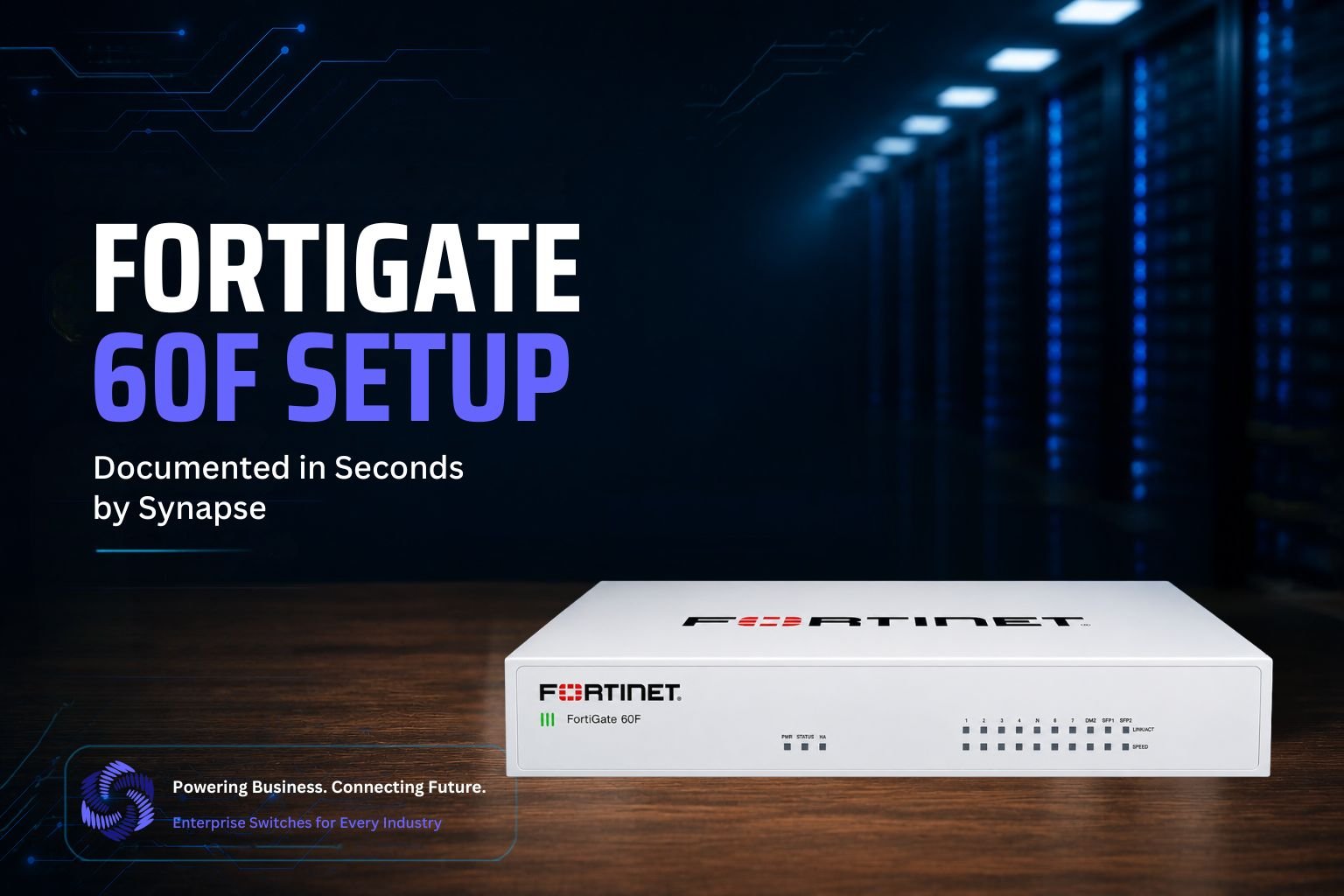
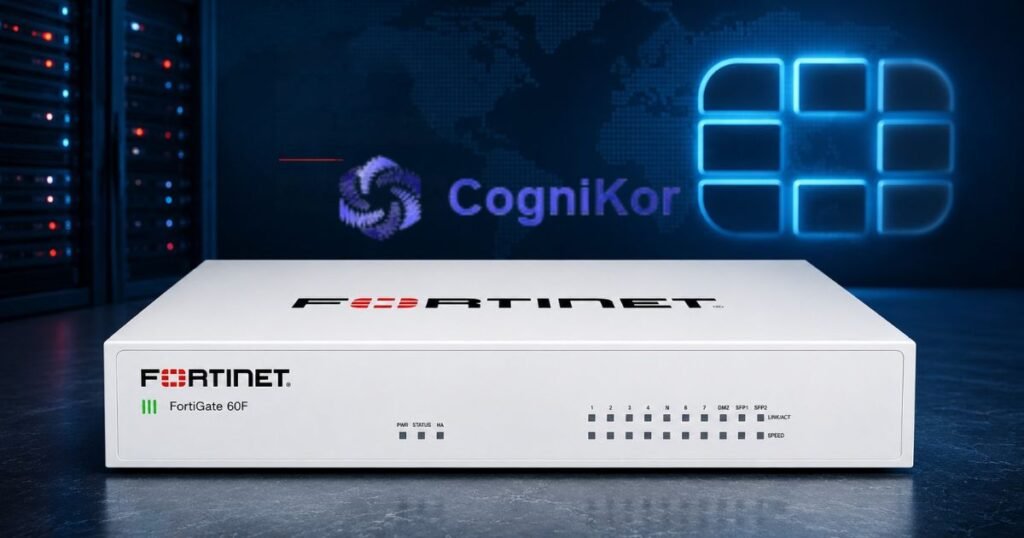
The FortiGate 60F is Fortinet’s compact, fanless desktop next-generation firewall (NGFW), built for branch offices, retail sites, and small-to-midsize business networks. It ships with 2 GE RJ45 WAN ports, 1 DMZ port, 7 GE RJ45 internal ports, and 2 GE RJ45 FortiLink ports, along with a single console port and one USB port.
On the performance side, it delivers up to 1.4 Gbps of IPS throughput, 1 Gbps of NGFW throughput, and 700 Mbps of threat protection throughput, with a raw firewall throughput of up to 10 Gbps depending on packet size. It also supports around 700,000 concurrent TCP sessions, 35,000 new sessions per second, up to 5,000 firewall policies, and 6.5 Gbps of IPsec VPN throughput.
Because Fortinet built the 60F around its Security Processing Unit and Secure SD-WAN stack, teams most often deploy it as a WAN edge/branch firewall — terminating internet and MPLS links, running SD-WAN rules across multiple uplinks, and connecting to a switch stack (frequently over FortiLink) for internal access-layer traffic. It’s rarely a core or data-center device; its role in a topology is almost always at the perimeter of a site.
Why the FortiGate 60F Still Needs a Modern Design Workflow?
The FortiGate 60F is a popular choice for branch and small-site deployments because it packs firewall, SD-WAN, and VPN gateway functions into a single compact appliance. But “compact hardware” doesn’t mean “simple project.” Every FortiGate 60F rollout still involves the same moving parts that slow network teams down:
- Where does the 60F sit in the topology; perimeter, internal segmentation, or DC firewall role?
- What connects to it — WAN links, LAN switches, wireless controllers, NAC?
- What policies, zones, and VPN configs do you need to apply?
- How do you produce documentation for the client or the internal team?
CogniKor’s suite maps directly onto each of these questions.
Step 1: Design the Topology in Synapse Grid
Synapse Grid is CogniKor’s AI-powered network topology designer. Instead of manually drawing boxes and lines, you work through a guided four-step workflow:
- Project Details: name the project, pick an architecture category (campus, DC, SD-WAN, Zero Trust, etc.), and choose HLD, LLD, or Handover documentation.
- Network Layers: toggle on the layers you need: WAN, LAN, Security, Wireless, Management, NAC, and more.
- Hardware Inventory: this is where the FortiGate 60F comes in. Add it under the Security layer, select Fortinet as the vendor, and choose the deployment mode (standalone, HA, VPN gateway, perimeter firewall, and so on).
- AI Topology Generation: Synapse Grid sends your structured inventory to its AI engine and returns a clean, interactive SVG diagram showing exactly how the FortiGate 60F connects to your switches, wireless APs, and WAN links.
Because the diagram is interactive, you can drag nodes, edit labels, hover for device details, and simulate link status before you deploy anything. Once you approve the design, export it straight to PDF, PNG, or SVG for the client-facing HLD/LLD deliverable — no redrawing required.
If you’re modernizing an existing site, Synapse Grid’s image analysis feature can scan a photo or an old diagram of the current network and automatically extract the devices into your inventory, so you don’t have to start from a blank canvas.
Step 2: Turn the Design Into a Secured Firewall Policy with CogniFire
Once the topology places the FortiGate 60F correctly, the next challenge is turning intent into an actual, correct firewall configuration. That’s the job of CogniFire, CogniKor’s AI security and policy engine.
CogniFire reads security intent; segmentation rules, zone boundaries, compliance requirements — and converts it into an optimized firewall configuration aligned with best practices. For a FortiGate 60F specifically, that means:
- Policy Intelligence Engine: translates plain security intent (e.g., “isolate guest Wi-Fi from internal VLANs”) into correctly structured firewall rules.
- One-Click Hardening: applies security best practices to the FortiGate 60F instantly instead of manually walking through every setting.
- Smart Rule Mapping: aligns policies to the correct interfaces and zones so nothing applies to the wrong port.
- Real-Time Risk Analysis and Compliance Overlay: continuously checks the configuration against known risks and regulatory requirements.
The result is a FortiGate 60F configuration that matches the topology you just designed in Synapse Grid, without the manual back-and-forth between the diagram and the CLI.
Step 3: Migrating to a FortiGate 60F? Let FireKor Handle It
Many FortiGate 60F deployments aren’t greenfield: they’re replacing an aging firewall from another vendor. That’s where FireKor comes in.
CogniKor built FireKor specifically for firewall-to-firewall migration. It imports your existing configuration, detects the source vendor and structure, and translates policies, NAT rules, and VPN configurations into FortiGate syntax; while preserving the original security intent rather than just converting line-by-line syntax. The workflow runs in four stages:
Import → Validate → Translate → Validation & Export
Along the way, FireKor generates an audit and reporting output with mappings, warnings, and optimization recommendations, and gives you a side-by-side comparison before you push the new FortiGate 60F configuration live. That means a legacy firewall replacement can move from “manual, error-prone, multi-day project” to a validated, same-day cutover.
Step 4: Connect the Switching Layer with CogniLink and SwitchKor
A FortiGate 60F rarely sits alone; it connects to access and distribution switches that need matching VLANs, trunk ports, and uplinks. This is where CogniLink and SwitchKor complete the picture.
CogniLink takes the structured network data from your design (the same VLAN and port plan reflected in your Synapse Grid topology) and turns it into validated, multi-vendor switch configurations. Its Dynamic Port Hierarchy automatically classifies ports into access, trunk, uplink, and management roles, and its Real-Time Validation Engine checks the configuration before and after deployment, so the switch side of your FortiGate 60F network is provisioned the first time correctly.
If the rollout also involves swapping out legacy switching hardware, SwitchKor handles that transition: it captures the legacy switch configuration, validates compatibility, adapts it to the new hardware’s capabilities, and deploys it; following a Capture → Validate → Adapt → Deploy lifecycle that keeps policies consistent across the upgrade.
Putting It All Together: A Same-Day FortiGate 60F Rollout
Here’s what the full workflow looks like when you use the CogniKor suite end-to-end for a FortiGate 60F deployment:
- Design the topology and place the FortiGate 60F in Synapse Grid, generating an AI-produced network diagram.
- Secure it with CogniFire, converting the design intent into a hardened, policy-driven firewall configuration.
- Migrate, if replacing an existing firewall, using FireKor to translate the old configuration into FortiGate syntax without losing security intent.
- Connect the switching layer using CogniLink for new deployments, or SwitchKor to modernize legacy switches alongside the firewall.
- Document and export the finished topology from Synapse Grid as a client-ready PDF or SVG, complete with version history for future iterations.
CogniKor Synapse Grid turns a multi-day project — once scattered across drawing tools, spreadsheets, and CLI sessions — into a single connected workflow, starting with an accurate topology diagram and ending with a validated, production-ready FortiGate 60F deployment.
Ready to Simplify Your Next FortiGate 60F Deployment?
Whether you’re standing up a new branch office, replacing a legacy firewall, or modernizing your switching layer alongside a FortiGate 60F rollout, CogniKor’s AI suite covers the full lifecycle — from the first topology sketch to the last validated config push.
FAQ’s
Yes. The FortiGate 60F is available as a predefined model under the Fortinet vendor entry. You can add it to a project’s inventory with the correct port count, deployment mode, and quantity, and Synapse Grid will generate an HLD/LLD diagram that places it at the WAN edge of the topology.
You set the deployment mode to HA and quantity to 2 in the inventory entry. Synapse Grid then renders two connected firewall nodes with an HA sync link between them, rather than a single stand-alone icon, so the diagram matches the actual redundant deployment.
No. Synapse Grid is a design and documentation tool — it generates and refines topology diagrams and inventory records. It does not connect to, configure, or modify any physical FortiGate device.
Yes. You can either enter the WAN interfaces as part of the initial inventory or use a natural-language instruction like “add a second WAN uplink for SD-WAN failover,” and Synapse Grid will update the diagram to show both links terminating at the firewall.
Yes. The image-to-inventory feature can analyze an uploaded diagram (Visio export, PDF, or photo) that includes a FortiGate 60F and extract the devices into a structured inventory automatically, which is useful for digitizing older branch documentation.
Conclusion
The FortiGate 60F is a solid, well-specified branch firewall — but the real time sink in most deployments isn’t the device; it’s keeping its design documentation accurate as the network evolves. CogniKor Synapse Grid closes that gap: structured inventory entry captures the 60F’s deployment mode and port layout correctly from the start, AI-generated diagrams place it where it actually belongs in the topology, and natural-language refinement handles the routine changes — a second uplink, an HA conversion, a new switch stack — without a manual redraw. If you’re documenting FortiGate 60F deployments across one site or fifty, try a Synapse Grid demo and see how quickly your next branch topology comes together.