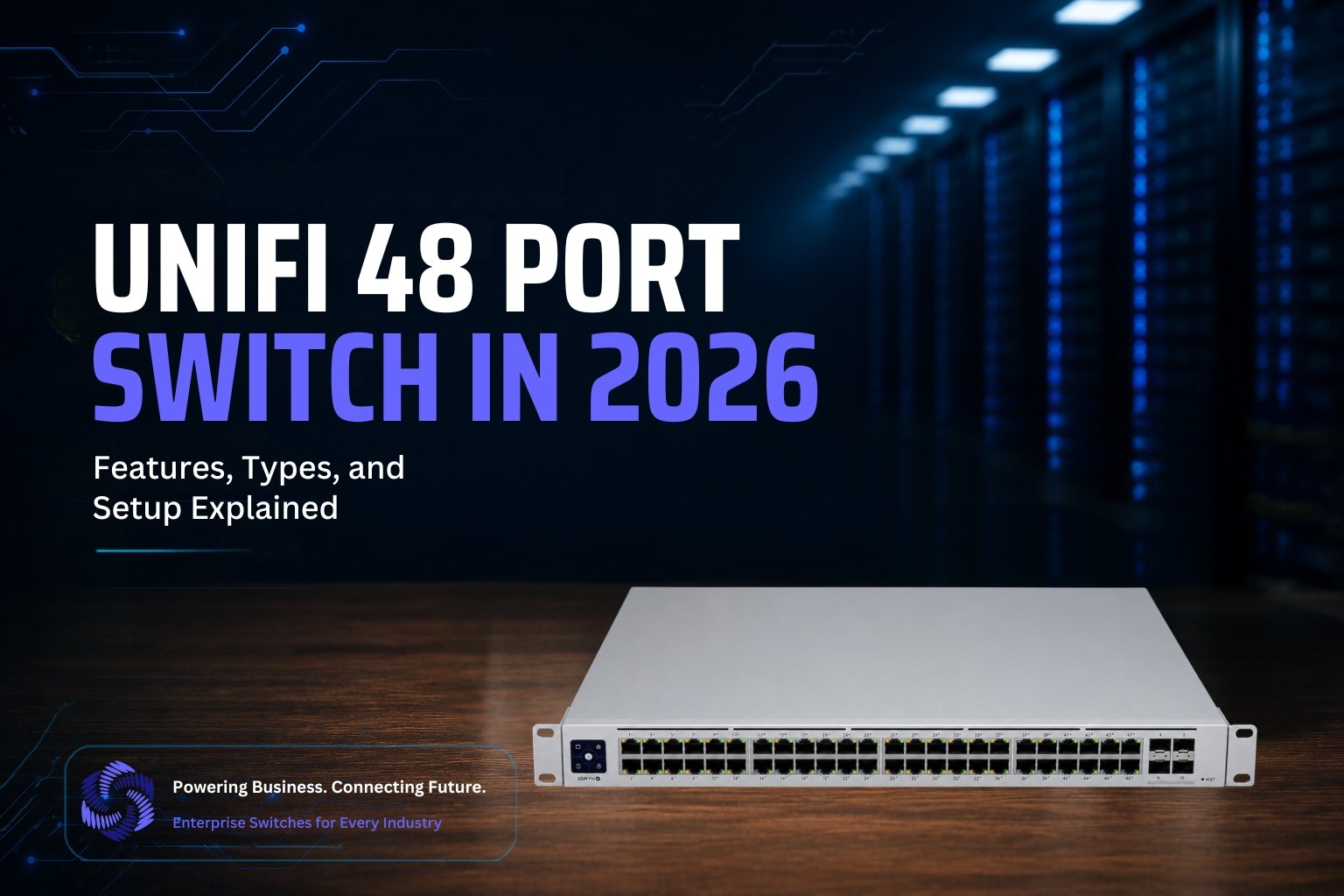
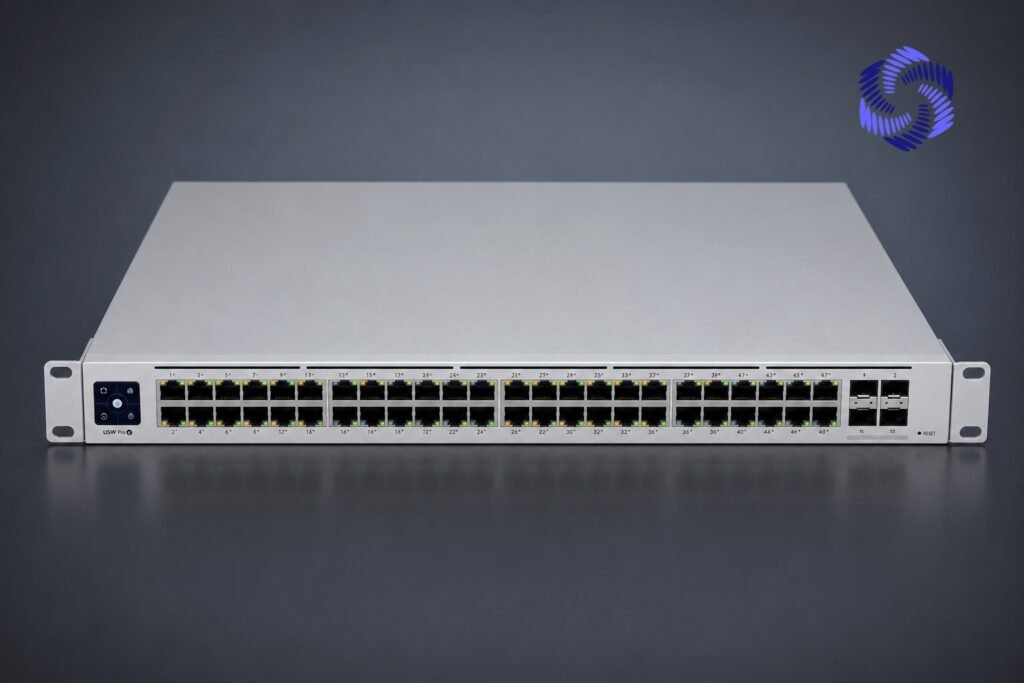
UniFi 48 Port Switch delivers powerful PoE+, Layer 2/3 switching & easy UniFi Network app management. Perfect for offices, campuses & smart buildings.
Introduction
The Ubiquiti UniFi 48 port switch is a cornerstone of modern networking, serving as the central nervous system for small-to-medium business environments and advanced home labs. Whether you are managing dozens of high-definition security cameras, providing wired connectivity for a sprawling office, or powering a fleet of Wi-Fi 7 access points, this hardware provides the enterprise-grade performance and granular control required for a stable network.
In this guide, you will learn how to unbox, mount, configure, and optimize your UniFi 48-port switch — from initial physical installation to advanced VLAN tagging and port management. This guide suits both IT beginners and hobbyists, with an “Intermediate” difficulty level, taking approximately 45–60 minutes to complete.
Prerequisites and Tools Needed
- Hardware: Your UniFi 48-port switch (e.g., USW-48, USW-Pro-48, or USW-Enterprise-48)
- UniFi Console: A UniFi OS Console (Dream Machine Pro, Dream Machine SE, or Cloud Key Gen2 Plus) to manage the switch via the UniFi Network application
- Cabling: Cat6a or Cat7 Ethernet cables, plus SFP+ modules/DAC cables for 10Gbps uplinks
- Tools: Phillips-head screwdriver, 19-inch rack-mount cabinet, grounding wire (if needed)
- Knowledge: Basic familiarity with IP addressing and web browser navigation
- Internet Access: Ensure your UniFi Console is connected and updated to the latest firmware
Step-by-Step Instructions UniFi 48 Port Switch
1. Physical Mounting and Powering
Securely mount your switch in the server rack using the provided rack ears and screws. Leave at least 1U of empty space above and below for airflow. Connect the power cable to a grounded outlet or UPS.
- Note: Never block the side air vents.
- Warning: Always use a surge-protected power source.
2. Connecting the Uplink
Connect your switch to your UniFi Gateway or router using SFP+ ports (recommended) or standard RJ45 ports to avoid bandwidth bottlenecks.
3. Adopting the Switch
Log into your UniFi Network dashboard, go to “Devices,” and click “Adopt” once your switch appears as “Pending Adoption.”
- Tip: If the switch doesn’t appear, ensure it’s on the same local network or check firewall settings for UniFi discovery traffic.
4. Updating Firmware
Always update firmware immediately after adoption for the latest security patches and compatibility fixes. Do not disconnect power during the update.
5. Configuring Ports and VLANs
Open the “Ports” tab to assign VLAN profiles (e.g., separating guest Wi-Fi from office traffic) and toggle PoE on/off per port as needed.
6. Enabling Port Aggregation
For devices with dual Ethernet ports (like a NAS), select two ports and enable “Aggregate” to double bandwidth to 2Gbps.
Common Mistakes to Avoid
- Ignoring Cable Management: Use Velcro ties and cable brushes to prevent airflow blockage and simplify troubleshooting.
- Overloading PoE Budgets: Calculate total wattage of connected devices (cameras, APs) to stay within your switch’s PoE limit.
- Using Poor Quality Cables: Stick to Cat6 or higher for full performance in 2026.
Troubleshooting FAQ’s
Q1: My switch is showing a “Heartbeat Missed” status. What do I do?
This usually indicates a communication issue between the switch and the UniFi Console. Check your uplink cable first. If the cable is fine, try power-cycling the switch by unplugging it for 30 seconds and plugging it back in.
Q2: I plugged in a device, but it is not getting power. Is the port broken?
Check the “Ports” tab in the UniFi dashboard. Ensure that PoE is enabled for that specific port. If it is enabled and the device still doesn’t power on, try a different cable or verify that the device is actually PoE-compatible.
Q3: How do I reset the switch to factory defaults?
Locate the small “Reset” pinhole on the front of the unit. While the switch is powered on, use a paperclip to press and hold the button for about 10 seconds until the status LEDs flash. The switch will reboot and return to its factory settings.
Maintenance Best Practices
- Quarterly Dusting: Use compressed air every 3–6 months to clear vents and prevent overheating.
- Cable Integrity Checks: Inspect connectors regularly and replace frayed or damaged cables.
- Security Audits: Review the “Client” list periodically and block unauthorized devices.
- Environmental Monitoring: Keep ambient temperature within 23°F–113°F; use a rack sensor if available.
Pros and Cons
Pros:
- Provides high port density at a competitive price, making it a cost-effective choice for growing networks
- Integrates seamlessly with the UniFi ecosystem, allowing centralized management through the UniFi Network app
- Scales easily to support additional devices, access points, and cameras as your business expands
Cons:
- PoE performance is best when device load is planned according to the switch’s power budget
- Pairing with a UniFi Controller/Console is recommended to unlock the full range of features
- Like any high-density switch, proper rack space and cooling setup helps ensure long-term reliability
FAQ’s
Some models, especially standard (non-PoE) versions, are fanless for silent operation—ideal for office environments. However, high-power PoE models often include fans for heat dissipation due to higher power output.
Most UniFi 48-Port Switches include SFP+ or SFP28 uplink ports (typically 2–4 ports) supporting 10G or 25G speeds, enabling fast connections to core switches, servers, or routers.
While it can function as a standalone switch, it’s designed to work best within the UniFi ecosystem, integrating with UniFi routers, access points, and cameras for centralized management via the UniFi Network app.
Pricing varies based on model and features—standard switches start around $300–$500, while Pro/Enterprise PoE models with advanced routing and higher PoE budgets can range from $800–$1,500+.
Yes, while designed to scale, it’s a great fit for growing small-to-medium businesses that need room to expand, offering enterprise-level features, VLAN segmentation, and PoE support at a competitive price point.
Conclusion
The UniFi 48-Port Switch offers reliable, high-performance networking with strong PoE support and easy UniFi integration. It’s a great fit for offices, campuses, and growing businesses alike. With multiple models available, you can choose one that matches your speed, power, and budget needs. It’s a smart investment for building a fast, scalable network.